
Tutorial · Scanning
How to scan a document in PaginaScan
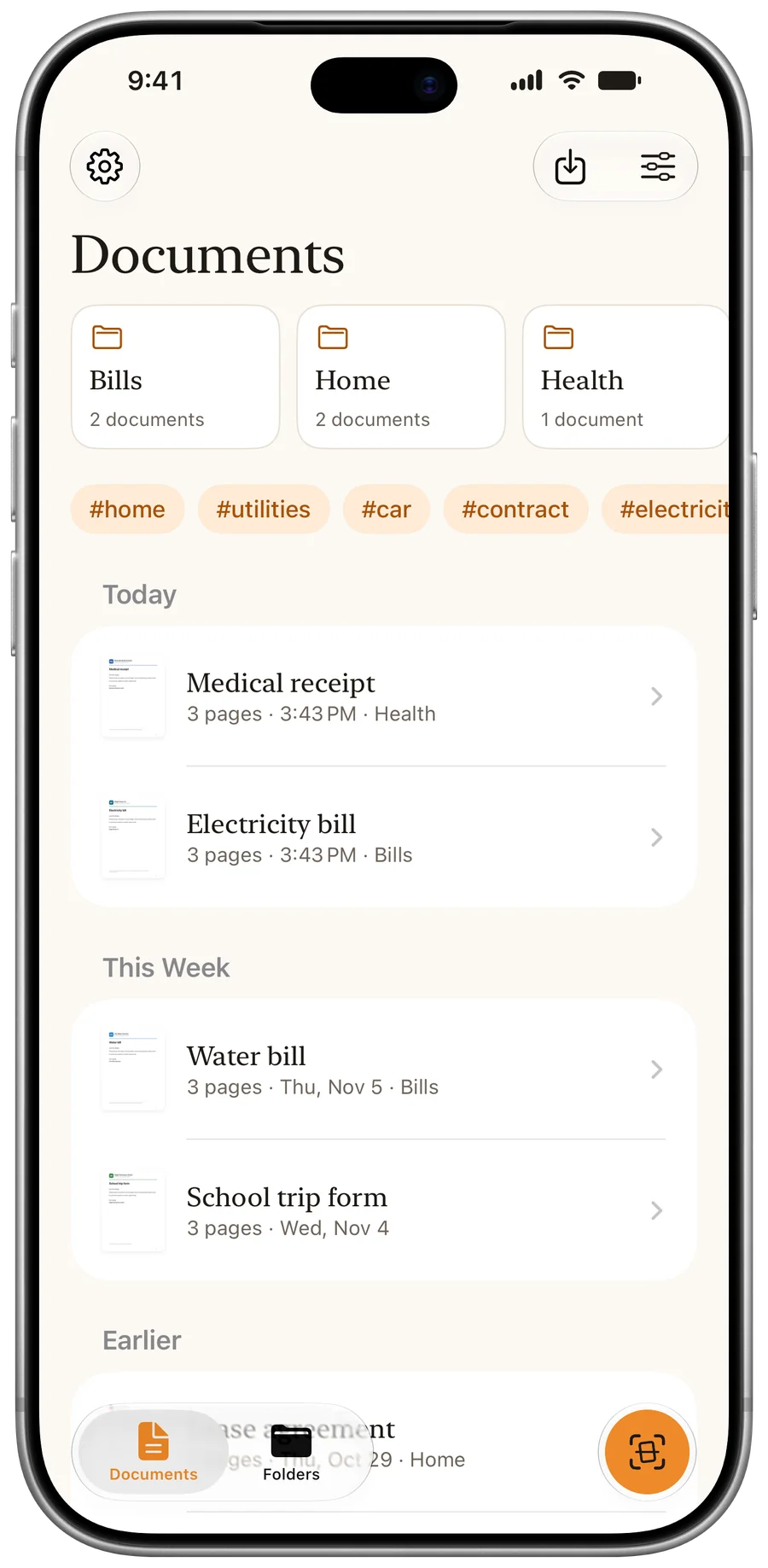
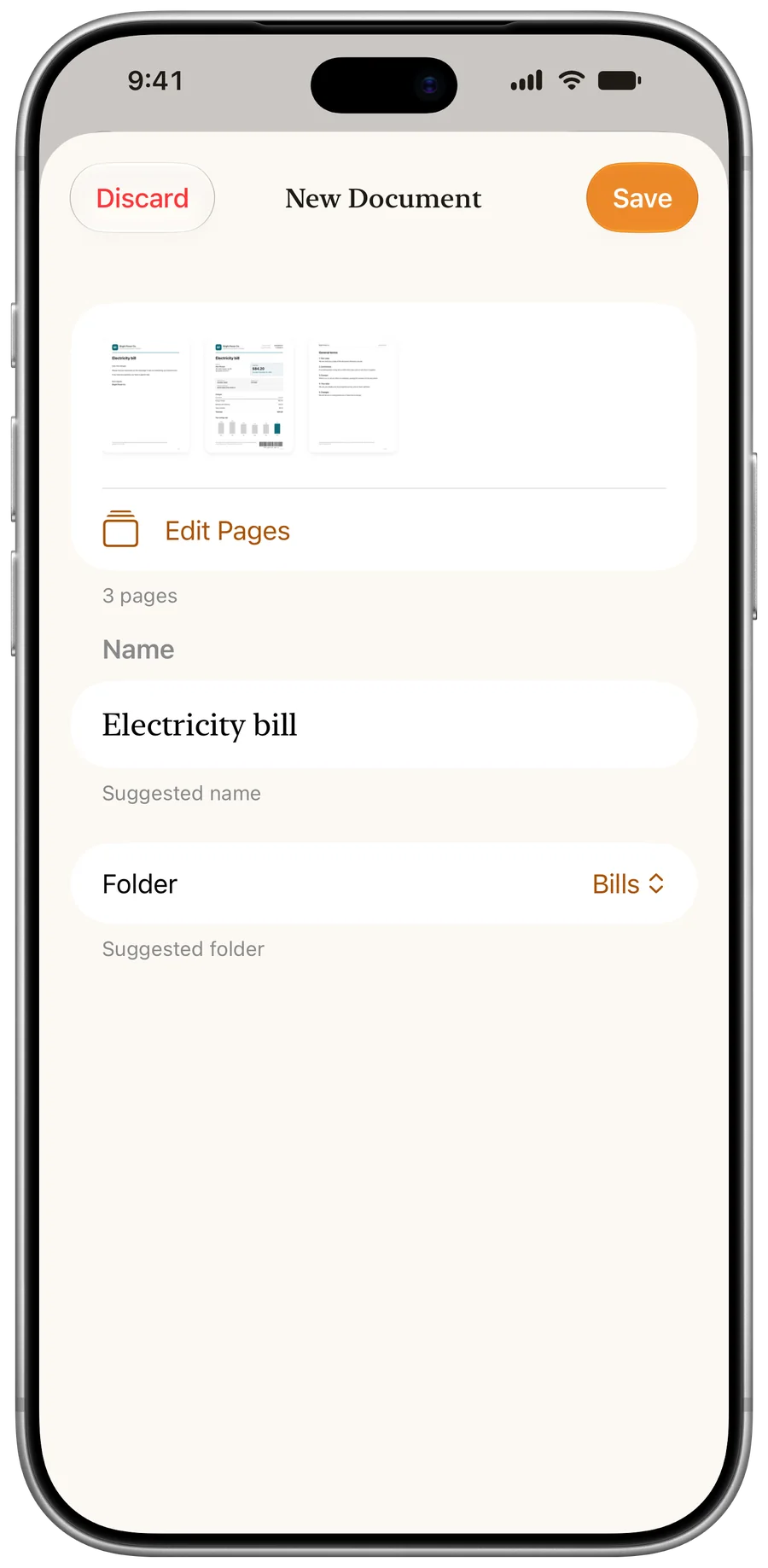
Tap Scan, hold the page in view of the camera, then check the suggested name and folder and tap Save. Add as many pages as you need: they become one PDF.
- Free
- iPhone or iPad
- A camera
Frame the page
Tap Scan, then hold the page in view. Edges and perspective fix themselves.
Check the name
You get a suggested name and folder. Keep them or change them, then tap Save.
Find it later
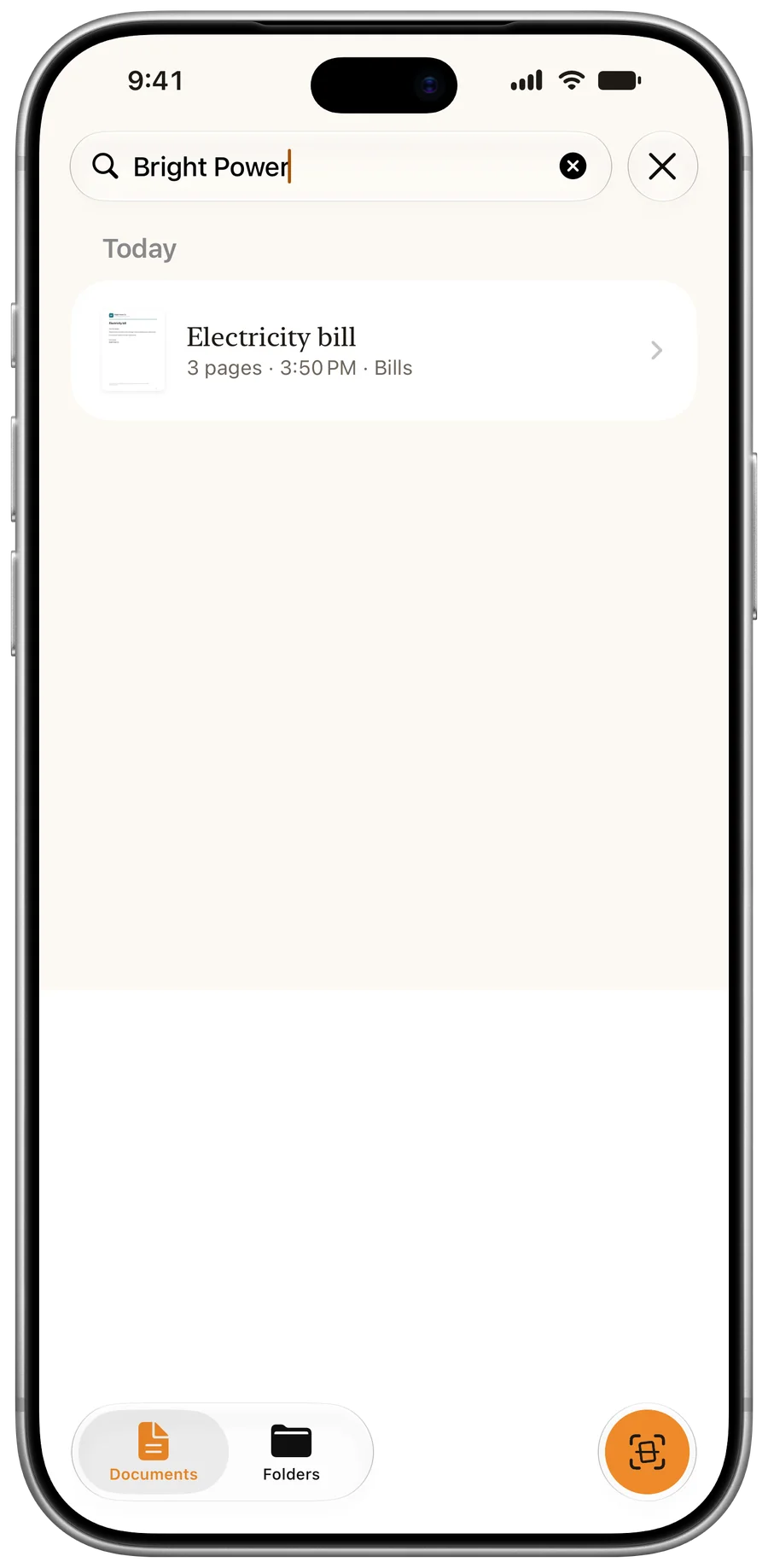
Search looks through names, folders, tags and the text of every page.
Questions
Can I scan several pages into one PDF?
Yes. Keep scanning before you tap Save. You can reorder, rotate or remove pages later.
Can I import a PDF I already have?
Yes. Import PDFs and images from the Files app: they are read like a scan. Coming from another scanner app? Here is how to move your documents out of CamScanner.
More tutorials
Last updated: