
Tutorial · Text
How to copy text from a scan in PaginaScan
Open a document and tap Read the Text, then select the words you need and copy them. Text recognition (OCR) runs on your device and it's free, so search can also find a document by what it says.
- Free
- iPhone or iPad
- Works offline
Open the document
The text is read as soon as you save, so there's nothing to turn on.
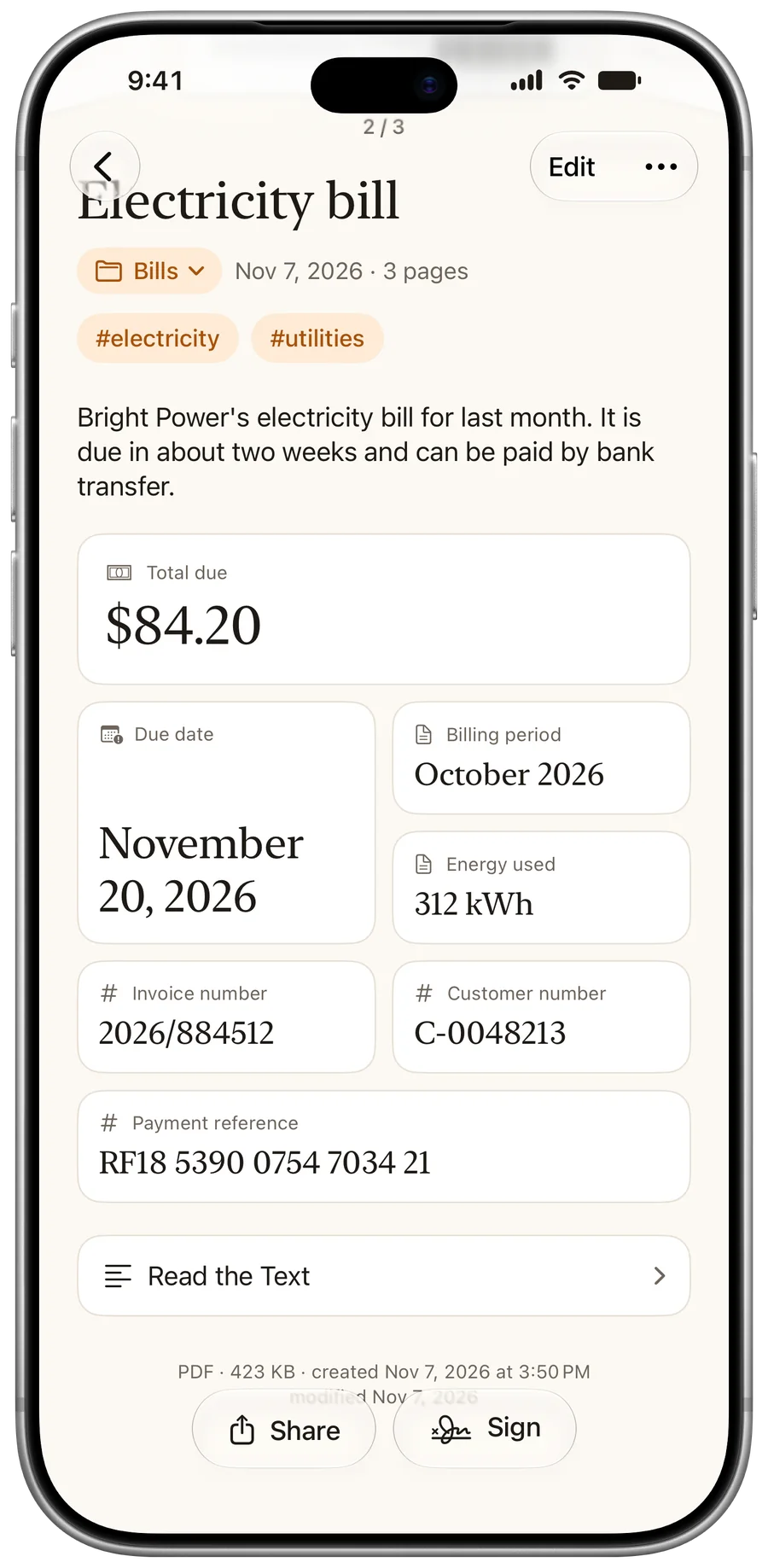
Tap Read the Text
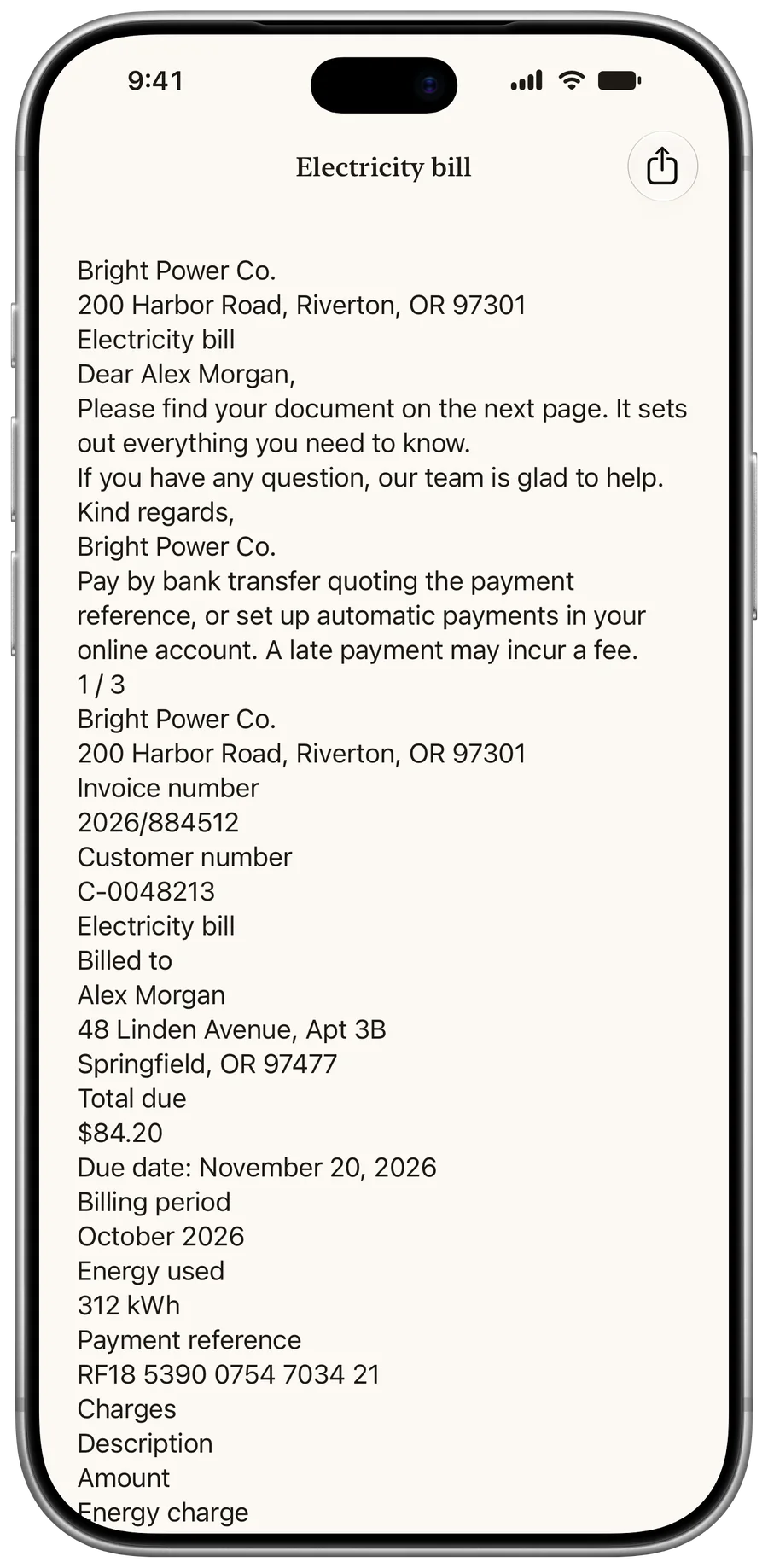
Select the words you need and copy them into another app.
Search inside your documents
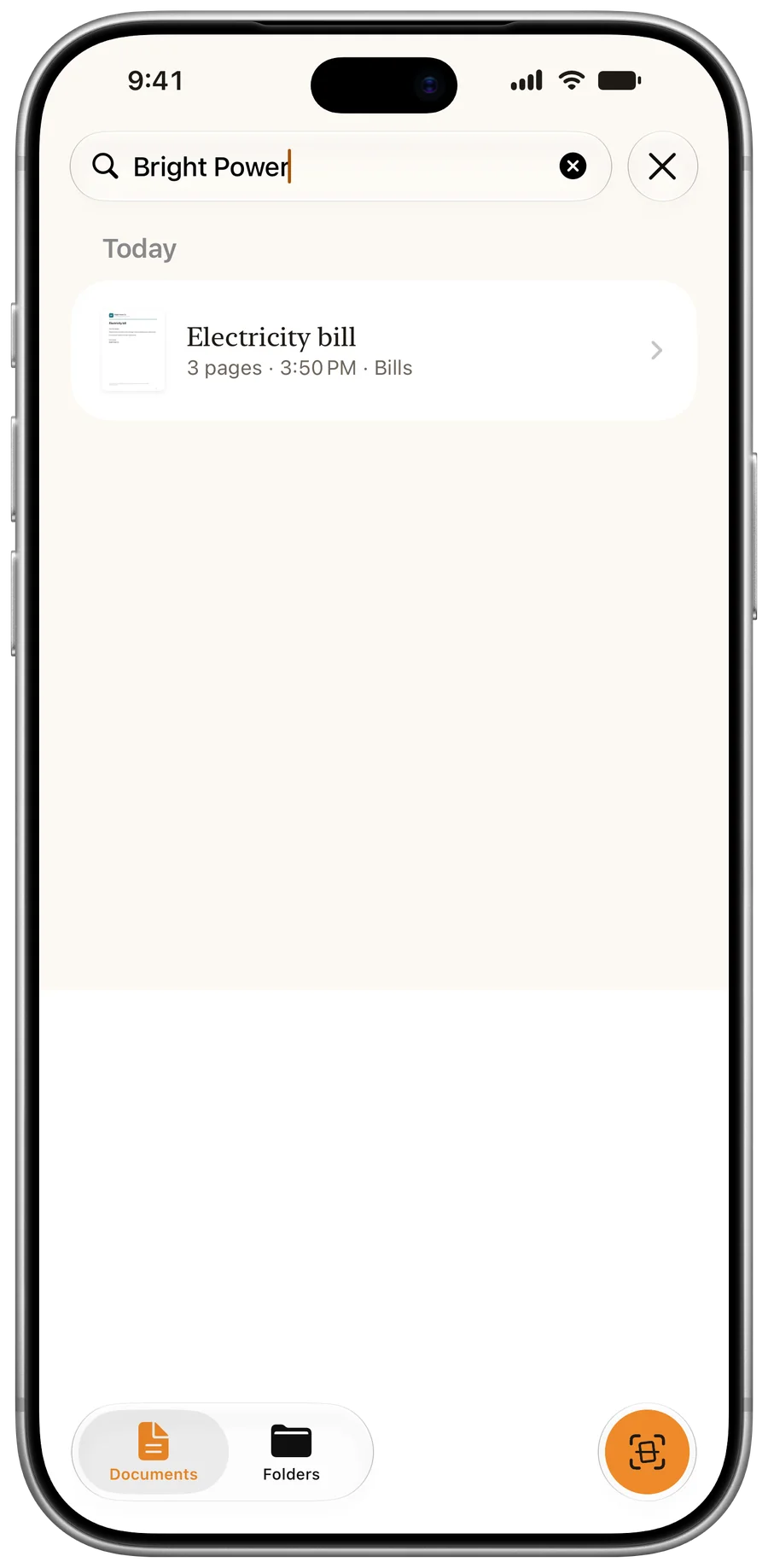
Type in the search bar in Documents. It looks through the text of every page.
Questions
Does it work offline?
Yes. Text recognition runs on your device, with no connection and no upload.
Is the PDF I share searchable?
Not for a scan: the PDF holds the page images. Search and copy the text in PaginaScan. Imported PDFs keep any text they already had.
More tutorials
Last updated: